OpenGL Tutorial - 1 | Getting Started | OpenGL in C++ with the GLUT library
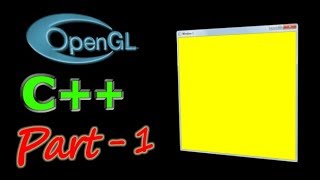
OpenGL Tutorial - 1 | Getting Started | OpenGL in C++ with the GLUT library - Notes
1. Summary
This video is the first in a series introducing OpenGL programming in C++ using the GLUT library. It covers the initial setup, including header files and initializing the OpenGL environment and GLUT library. The primary focus is on creating an OpenGL window, setting its background color, and understanding the basic structure of an OpenGL program, including the display callback, frame buffer and clearing.
2. Key Takeaways
* **OpenGL is a Graphics Rendering API** mainly used for 3D graphics.
* **GLUT library simplifies OpenGL programming tasks.**
* **Essential header files:** `#include <GL/gl.h>`, `#include <GL/glu.h>`, `#include <GL/glut.h>`.
* **Core OpenGL functions are prefixed with `GL`**.
* **GLUT library functions are prefixed with `glut`**.
* **Display Callback:** A function registered with GLUT that is called to redraw the window. It includes functions to clear and set the background colour
* **Frame Buffer:** An area in memory that corresponds to a screen, pixels are drawn to the frame buffer and then displayed by calling `glFlush()`.
* **Clear Color:** Set using `glClearColor(red, green, blue, alpha)` with values from 0.0 to 1.0.
* Basic OpenGL program structure:
1. Include Header Files.
2. `glutInit(&argc, argv);` Initialize GLUT.
3. `glutInitDisplayMode(GLUT_RGB | GLUT_DOUBLE);` Set display mode.
4. `glutInitWindowPosition(x, y);` Set window position.
5. `glutInitWindowSize(width, height);` Set window size.
6. `glutCreateWindow("Window Title");` Create the window.
7. `glutDisplayFunc(display);` Register display callback.
8. `glClearColor(red, green, blue, alpha);` Set the background colour.
9. `glLoadIdentity();` Reset the coordinate system.
10. `glClear(GL_COLOR_BUFFER_BIT);` Clear the frame buffer.
11. `glFlush();` display the frame buffer.
12. `glutMainLoop();` Start the GLUT event processing loop.
3. Detailed Notes
**I. Introduction (0:00:00 - 0:00:25)**
* This video is the first in an OpenGL tutorial series using C++ and the OpenGL API.
* Uses the GLUT library to simplify programming.
* Requires basic C++ knowledge.
* Environment setup is crucial (link provided).
**II. Environment Setup & Initial Project (0:00:25 - 0:01:22)**
* The user needs to have a working OpenGL environment setup before starting.
* The video series is using the glut library.
* Demonstration of a basic GLUT project setup (template code).
**III. Essential Header Files (0:02:00 - 0:03:24)**
* `#include <GL/gl.h>`: OpenGL API header file.
* `#include <GL/glu.h>`: OpenGL Utility Library (GLU) provides functions for easier interaction with OpenGL.
* `#include <GL/glut.h>`: GLUT header file. Requires installation (link provided).
* `glut.h` includes the other two files so they can be removed in some cases.
* The GL and GLU headers may need to be included or excluded depending on the compiler being used.
* The `GL` prefix is used for OpenGL API functions.
**IV. Main Function & Initialization (0:04:03 - 0:05:27)**
* Uses `glutInit(&argc, argv)` to initialize the GLUT library. Command-line arguments are passed for initialization.
* Uses `glutInitDisplayMode(GLUT_RGB | GLUT_DOUBLE);` to initialize the display mode.
* `GLUT_RGB`: Uses RGB color mode (red, green, blue).
* `GLUT_DOUBLE`: Double buffering display mode (not explained in detail at this point).
**V. Window Creation (0:05:55 - 0:07:37)**
* `glutInitWindowPosition(x, y)` sets the initial window position (in screen coordinates).
* `glutInitWindowSize(width, height)` sets the initial window size (in pixels).
* `glutCreateWindow("Window Title")` creates the window. Takes a string argument for the window title.
* Without a display callback, the window opens briefly and closes.
**VI. The Display Callback and the Event Loop (0:07:37 - 0:11:24)**
* **Problem:** Without a display callback, the program terminates immediately.
* **Display Callback:** A function responsible for redrawing the window's contents.
* **`glutDisplayFunc(display)`**: Registers a display callback function. The function takes no arguments and returns void.
* `glutMainLoop()`: Starts the GLUT event processing loop. This loop keeps the program running and handles events.
* The `glutDisplayFunc` tells the program which function to call every time the window needs to be redrawn (e.g., when first created or when resized).
**VII. Basic Display Callback Structure (0:12:00 - 0:16:19)**
* Inside the display callback function:
* `glClear(GL_COLOR_BUFFER_BIT)`: Clears the color buffer (frame buffer). The screen is cleared before each redraw.
* `glLoadIdentity()`: Resets the current matrix (modelview in this example).
* `glFlush()`: Displays the contents of the frame buffer to the screen.
**VIII. Frame Buffer and Clearing (0:13:31 - 0:16:11)**
* The frame buffer is the memory area where the program draws, corresponds to the pixels on the screen.
* `GL_COLOR_BUFFER_BIT`: Flag used with `glClear()` to specify that the color buffer (frame buffer) should be cleared.
* Changes to the frame buffer happen in memory first and are only displayed when `glFlush()` is called.
* The clearing occurs before drawing to the frame buffer.
**IX. Setting the Background Color (0:17:12 - 0:19:54)**
* `glClearColor(red, green, blue, alpha)`: Sets the color used to clear the frame buffer.
* `red`, `green`, `blue`: Values from 0.0 to 1.0, specifying the intensity of each color component.
* `alpha`: Fourth argument; for alpha blending.
* Example: Setting `glClearColor(1.0, 1.0, 0.0, 1.0);` results in a yellow background (full red and green, no blue).
Related Summaries
![[캡컷PC]0015-복합클립만들기분리된영상 하나로 만들기](https://img.youtube.com/vi/qtUfil0xjCs/mqdefault.jpg)
Why this video matters
This video provides valuable insights into the topic. Our AI summary attempts to capture the core message, but for the full nuance and context, we highly recommend watching the original video from the creator.
Disclaimer: This content is an AI-generated summary of a public YouTube video. The views and opinions expressed in the original video belong to the content creator. YouTube Note is not affiliated with the video creator or YouTube.